CHIP
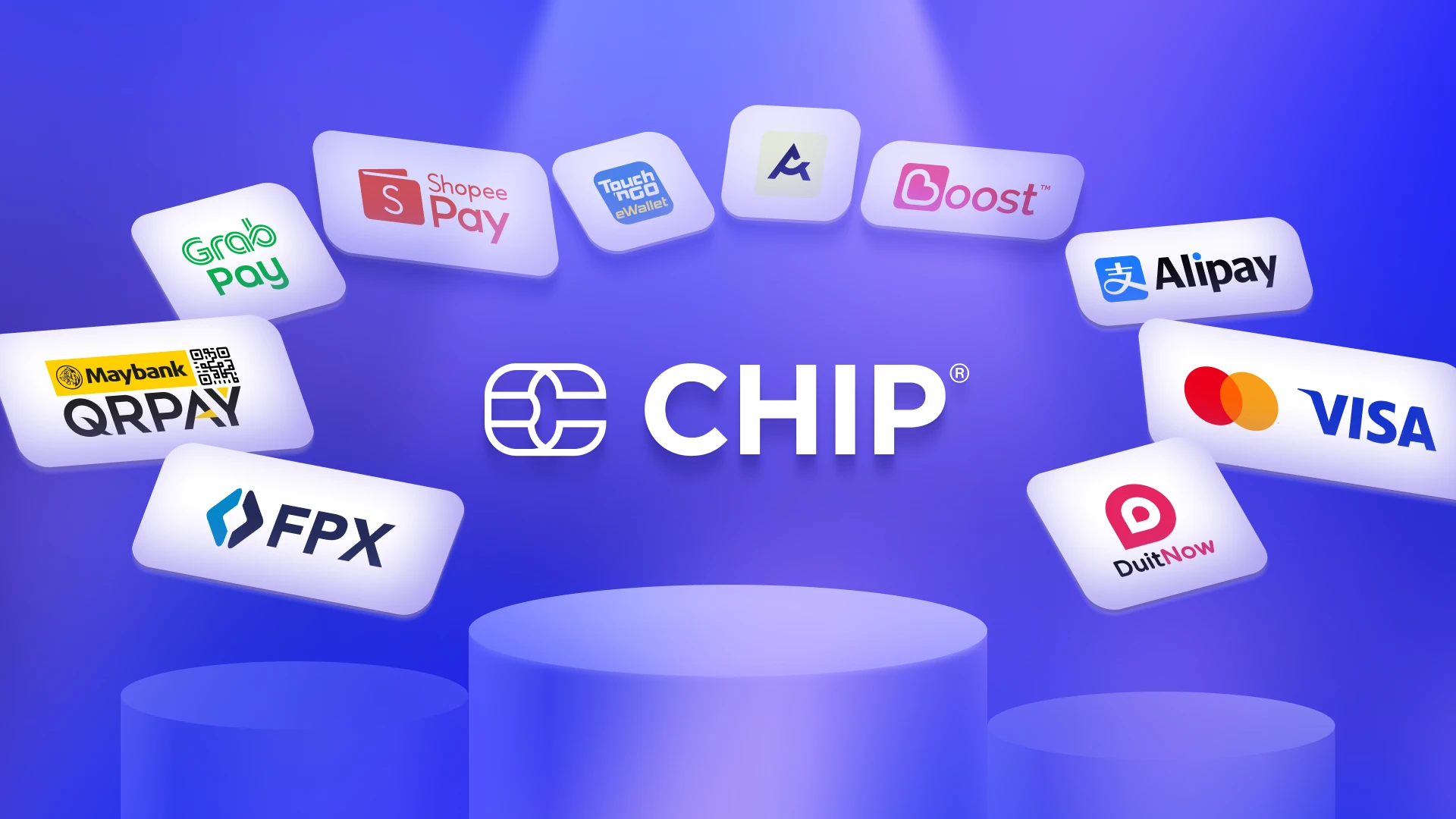
CHIP is a Malaysian payment gateway. Connect your CHIP account and shoppers pay you directly by the methods your CHIP account has turned on, such as FPX, cards and e-wallets.
What you need
Two details from your CHIP account. Sign in to the CHIP portal to find them.
Brand ID
- Go to Developers › Brands.
- Copy the Brand ID from the table.
API key
- Go to Developers › API Keys.
- Choose Copy link to copy your API key.
Your API key gives full access to your CHIP account, including payments and refunds. Treat it like a password:
- Never share it with anyone, including people claiming to be from CHIP or Gerai Digital. We will never ask you for it.
- Don't send it by email, WhatsApp or chat, or post it anywhere.
- Paste it only into Settings › Configuration › Payments in your Gerai Digital dashboard.
If you think someone else has seen it, create a new key in CHIP straight away, delete the old one, and update it in Gerai Digital.
Connect CHIP
- Go to Settings › Configuration › Payments and choose New payment method.
- Under Payment Gateways, pick CHIP.
- Give it a Label, then paste your Brand ID and API key.
- Choose Create payment method.
- Open each store that should take CHIP payments, go to Payment Methods, turn CHIP on and set it as Primary.
You don't need to set up webhooks or callback URLs in CHIP. Gerai Digital tells CHIP where to report each payment, and checks every report is genuinely from CHIP before marking an order paid.
How a payment works
- At checkout, the shopper is sent to CHIP's payment page.
- They pay there, then come back to your store.
- CHIP confirms the payment and the order is marked Paid.
CHIP's fees and payout schedule apply, and the money goes to your CHIP account. To refund a shopper, refund them in your CHIP dashboard, then record the refund on the order. See Orders.